Inilah daftar harga BlackBerry Juni 2011. Bagi teman-teman yang ingin membeli BlackBerry, maka sangat cocok bila kamu mencocok harga terlebih dahulu dengan daftar harga BlackBerry yang akan dipostingan pada tulisan ini. Adapun daftar harga BlackBerry pada bulan Juni 2011 adalah sebagai berikut di bawah ini:
Harga BlackBerry Juni 2011
- BLACKBERRY GEMINI: Harga Baru Rp1.999.000
- BLACKBERRY GEMINI WHITE: Harga Baru Rp2.100.000
- BLACKBERRY ONYX 2 9780 Black: Harga Baru Rp3.900.000
- BLACKBERRY TORCH 9800 (WHITE): Harga Baru Rp4.700.000
- BLACKBERRY TORCH 9800 (BLACK): Harga Baru Rp4.500.000
- BLACKBERRY TORCH 9800 (RED): Harga Baru Rp4.750.000
- BLACKBERRY GEMINI 9300 (GREY): Harga Baru Rp2.650.000
- BLACKBERRY ONIX2 9780 (WHITE): Harga Baru Rp4.000.000
- BLACKBERRY ONIX2 9780 (BLACK) NON LOGO: Harga Baru Rp4.000.000
Nah... setelah mengetahui dari daftar harga BlackBerry Juni 2011 diatas, maka tentu ketika teman-teman mau membeli BlackBerry pada counter-counter handphone terdekat dengan tempat kamu, maka terlebih dahulu kamu sudah dapat mencocok harga yang tepat dan sekiranya tidak akan bisa merugikan teman-teman ketika ingin membelinya.
Tampilkan postingan dengan label blackberry fruit. Tampilkan semua postingan
Tampilkan postingan dengan label blackberry fruit. Tampilkan semua postingan
Selasa, 31 Mei 2011
Minggu, 01 Mei 2011
Harga Blackberry Terbaru
Berikut daftar Harga BlackBerry April – Mei 2011 Terbaru :
BlackBerry Torch 9800 : Gr.Resmi:Rp.4.900.000
BlackBerry Bold 9700 : Harga Baru : Rp.3.850.000,- Harga Second : Rp.2.850.000,-
BlackBerry Bold 9780 : Harga Baru : Rp. 4,150,000,-
BlackBerry 9300 Curve 3G : Harga Baru : Rp. 2,550,000,-
BlackBerry Bold 9000 : Harga Second: Rp.1.850.000,
BlackBerry 9800 Torch : Harga Baru : Rp.4.900.000,-
BlackBerry Bold 9650 : Harga Second : Rp.3.000.000,-
BlackBerry Pearl 8120 : Harga Second : Rp.Rp.1.050.000,-
BlackBerry Tour 9630 : Harga Second : Rp.1.900.000,-
BlackBerry Pearl 3G 9100 : Harga Baru : Rp.3.150.000,-
BlackBerry Pearl 3G 9105 : Harga Baru : Rp.2.520.000,-
BlackBerry Storm2 9550 : Harga Second: Rp.2.450.000,-
BlackBerry 8320 : Harga Second : Rp.1.000.000,-
BlackBerry Gemini 8520 : Harga Baru : Rp.2.175.000,- Harga Second : Rp.1.600.000,-
BlackBerry Javelin 8900 : Harga Second: Rp. 1,950,000,-
BlackBerry Storm 9500 : Harga Second: Rp.1.800.000,-
BlackBerry 8220 : Harga Second : Rp.1.200.000,-
BlackBerry Curve 8310 : Harga Second : Rp.900.000,-
BlackBerry Aries 8530 : Baru: Rp. 2,150,000,- Harga Second: Rp. 1,600,000,-
BlackBerry Torch 9800 : Gr.Resmi:Rp.4.900.000
BlackBerry Bold 9700 : Harga Baru : Rp.3.850.000,- Harga Second : Rp.2.850.000,-
BlackBerry Bold 9780 : Harga Baru : Rp. 4,150,000,-
BlackBerry 9300 Curve 3G : Harga Baru : Rp. 2,550,000,-
BlackBerry Bold 9000 : Harga Second: Rp.1.850.000,
BlackBerry 9800 Torch : Harga Baru : Rp.4.900.000,-
BlackBerry Bold 9650 : Harga Second : Rp.3.000.000,-
BlackBerry Pearl 8120 : Harga Second : Rp.Rp.1.050.000,-
BlackBerry Tour 9630 : Harga Second : Rp.1.900.000,-
BlackBerry Pearl 3G 9100 : Harga Baru : Rp.3.150.000,-
BlackBerry Pearl 3G 9105 : Harga Baru : Rp.2.520.000,-
BlackBerry Storm2 9550 : Harga Second: Rp.2.450.000,-
BlackBerry 8320 : Harga Second : Rp.1.000.000,-
BlackBerry Gemini 8520 : Harga Baru : Rp.2.175.000,- Harga Second : Rp.1.600.000,-
BlackBerry Javelin 8900 : Harga Second: Rp. 1,950,000,-
BlackBerry Storm 9500 : Harga Second: Rp.1.800.000,-
BlackBerry 8220 : Harga Second : Rp.1.200.000,-
BlackBerry Curve 8310 : Harga Second : Rp.900.000,-
BlackBerry Aries 8530 : Baru: Rp. 2,150,000,- Harga Second: Rp. 1,600,000,-

Minggu, 10 April 2011
RIM BlackBerry Curve Review


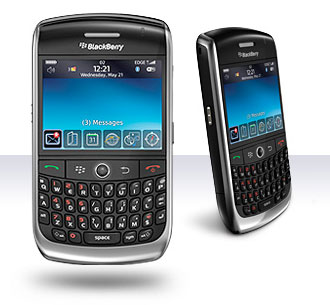
BlackBerry Pearl owners say "D'oh!" The Curve is just as slim as the Pearl (0.6 inches), and at 3.9 ounces it's only 0.7 ounces heavier. It slips easily into a pocket, no geeky hip holster required. Granted, at first glance this device doesn't seem as deserving of an iconic name as the Pearl, but the Curve's liquid-silver finish with chrome accents and rounded edges make it an attractive alternative to the Samsung BlackJack.
More important, RIM managed to squeeze in a full-sized backlit keyboard, one that makes the Curve noticeably wider than but also much more reliable than the Pearl, whose not-so-SureType keyboard doesn't always accurately guess the word you're trying to peck. In just a few minutes we were typing e-mails and entering Web addresses at a brisk pace, thanks to the Curve's well-spaced layout. Just like the Pearl and the 8800, the Curve has a trackball for simple (if sometimes erratic) menu navigation.
The 2.5-inch, 320 x 240-pixel display did a superb job rendering everything from Web pages and maps to photos and videos. The rest of the design is pretty straightforward. A standard 3.5mm stereo jack, a USB port, and a push-to-talk key line the left side of the Curve, and the volume buttons and camera-launch key are on the right side.
Spesifikasi BlackBerry Curve


Still offering an attractive design and excellent messaging capabilities, the addition of GPS makes the RIM BlackBerry Curve 8310 an even more attractive choice for road warriors.
Review:
Editor's note: This review has been updated to include the results of our battery drain testing.
Back in May, we fell in love with the original RIM BlackBerry Curve, but a recent refresh of the smartphone has our hearts pitter pattering all over again. The RIM BlackBerry Curve 8310 keeps the same sleek design and robust messaging capabilities of its predecessor, but then adds GPS capabilities. The ability to use your smartphone as a navigation device is particularly useful for mobile professionals who are constantly on the road, running to meetings or traveling for business trips
Jumat, 25 Maret 2011
Harga HP BlackBerry Curve
BLACKBERRY 9300 Curve 3G - Graphite Grey by TAM
Smart Phone
512MHz Processor, Quad Band, TFT 65K Colors, GPRS, HSDPA, Bluetooth, 2MP Camera, MP3 Player, Video, FM Radio, 256MB RAM, microSD slot, Wi-Fi, BlackBerry OS 5.0, QWERTY Keyboard
Rp 2,885,000
Smart Phone
512MHz Processor, Quad Band, TFT 65K Colors, GPRS, HSDPA, Bluetooth, 2MP Camera, MP3 Player, Video, FM Radio, 256MB RAM, microSD slot, Wi-Fi, BlackBerry OS 5.0, QWERTY Keyboard
Rp 2,885,000
Rabu, 16 Maret 2011
Harga Blackberry | HP Murah


Kumpulan FOTO FOTO BLACKBERRY TERBARU 2011; Blackberry Tercanggih, Handphone Blackberry keren, Unik, Terbaru dan Termahal
Kamis, 04 November 2010
How do I unlock my BlackBerry?
Blackberry 9500 / 9530 Storm
These instructions must be carried out with a SIM card in the phone. Can be from any network and be active/inactive.
Blackberry 83xx Curve, 8700, 8800,8900 Curve / 9000 Bold and ALL other Models
These instructions must be carried out with a SIM card in the phone. Can be from any network and be active/inactive.
- Enter the Main Menu by pressing the Blackberry Logo button
- Click 'Manage Connections' - you may have to scroll using your finger to find the icon
- Click 'Turn All Connections Off'
- Return to the Main Menu by pressing the Back button
- Click 'Options' - again, you may have to scroll using your finger to find the icon
- Click 'Advanced Options'
- Click 'SIM Card'
- Press the BlackBerry Logo button and click Show Keyboard
- Tilt the handset onto it's side - you should see a larger full QWERTY keyboard
- Type M E P D - The letters will not appear on the screen when typing.
- This is the tricky part due to the touch screen, we recommend you hover over the letter to make sure you are pressing the right one and then click the screen. The letter will light up blue when hovering. If you are successful in entering M E P D then you should now see the Personalisation menu or a change of text on the screen - proceed to Step 11. If nothing has happened you should press Back and go back to Step 7.
- Type M E P 2 - Again, The letters will not appear on the screen when typing. To bring up the number 2, click the !?123 button.
- If nothing happens click back , click 'SIM Card' and start this step (11) again.
- A box should appear asking you to enter the Network MEP Code - this is your unlock code. You can tilt the phone back for a bigger keypad at this stage (optional).
- Enter the unlock code in the box and press the Return key (down and left arrow on the right of the keypad)
- If you received 'Code Accepted' proceed to Step 13.
- If you received 'Code Error, please wait', go back to Step 11 and then try the next code, or see Troubleshooting.
- Turn the handset OFF then ON again and the handset will be permanently unlocked and can be used on any compatible GSM network, worldwide - remember to turn the Wireless connections back on in 'Manage Connections' so the phone will connect to the carrier.
Blackberry 83xx Curve, 8700, 8800,8900 Curve / 9000 Bold and ALL other Models
Kamis, 21 Oktober 2010
CARA CEK PIN BLACKBERRY
CARA CEK PIN BLACKBERRY Mungkin anda belum tahu bagaimana caranya untuk cek PIN BlackBerry anda masih bisa dipakai atau tidak yang banyak orang bilang SUSPEN. Apalagi anda membeli handle BlackBerry second (2nd). Anda harus benar-benar perhatikan. Bagi yang sudah tahu saya mohon ralat atau tambahannya. Bagi anda yang masih awam tentang BlackBerry. Namun anda ingin membeli sebuah handle/handphone BlackBerry. Saran saya agar anda memilih toko handphone yang berani menjamin PIN atau Life Time PIN warranty. Baik itu new ataupun 2nd. Dan andapun bisa meminta untuk setting aktivasi sekalian. Agar dapat terdeteksi langsung bisa atau tidaknya. Beberapa cara mungkin sudah terposting terlebih dahulu oleh rekan-rekan blogger. Namun disini saya akan mencoba mengulas kembali langkah-langkah tersebut dan menambahkan sedikit dari info yang telah ada. OK.....Langsung ajah ea. Cek bisa anda lakukan secara online dengan cara masuk ke salah satu provider kartu yang akan anda pakai ex : * http://www.xl.blackberry.com * http://www.indosat.blackberry.com * http://www.axis.blackberry.com * http://www.telkomsel.blackberry.com Lalu anda coba regristrasi dengan PIN atau IMEI yang akan anda pakai. Bila keterangannya "already in exist" berarti PIN dan IMEI dapat digunakan. Tetapi bila yang muncul disitu bukan seperti diatas jangan dibeli. Diatas adalah langkah yang banyak telah di post sebelumnya. Namun sebenarnya ada langkah mudah untuk cek bila anda memiliki kartu yang masih aktive langganan layanan blackberry. Tinggal masukkan saja kartu tersebut pada handle BlackBerry yang akan di test. Bila indikator GPRS/EDGE/3G dengan kapital besar atau logo Blackberry muncul. Berarti PIN dan IMEI masih dapat digunakan. Tinggal bagaimana warranty PIN dari Toko yang menjualnya. INGAT.....Pilih yang bisa LifeTime PIN Warranty. Setelah itu tinggal ke setting email apakah masih "nyantol" apa tidak dengan account lama. Bila masih "nyantol" mohon lepas data dari pemilik sebelumnya yang menggunakan. Demikian beberapa langkah untuk cek PIN handle BlackBerry. Semoga bermanfaat. Jangan lupa tinggalkan komentar ea..jangan cuma dibaca aja gan..Kalau ada yang mau nambahin infonya. Saya mengucapkan banyak terimakasih.
Cara Setting Facebook di BlackBerry
Agar bisa Facebook di BlackBerry, kita mesti tau cara setting Facebook di BlackBerry. Inilah panduan langkah-langkah cara konfigurasi agar bisa akses Facebook di BlacBerry:
* Langkah Pertama pastikan bahwa Aplikasi Facebook untuk Blackberry telah terinstal di Blackberry kamu, lihat apakah icon Facebook (huruf “F” dengan latar biru) telah muncul di Home Screen Blackberry kamu, jika belum ada baiknya kamu install Facebook for Blackberry lewat Blackberry Apps World.
* Langkah kedua, pengaturan email di Blackberry, Setting email di Blackberry dimana email ini harus sama dengan email facebook kamu. Karena jika tidak, kamu tidak akan menerima “notifikasi” jika ada komentar masuk dll ke facebook kamu.
* Langkah selanjutnya, masuk ke Aplikasi Facebook untuk Blackberry, masukan informasi Login yang diperlukan terus klik Login.
* Selesai, kini kamu pun terus stay update dengan fren-fren kamu di Facebook, dan tentunya kamu juga bisa membalas wall, mengupload foto sampai melihat profile fren kamu.
http://appworld.blackberry.com/webstore/content/680
* Langkah Pertama pastikan bahwa Aplikasi Facebook untuk Blackberry telah terinstal di Blackberry kamu, lihat apakah icon Facebook (huruf “F” dengan latar biru) telah muncul di Home Screen Blackberry kamu, jika belum ada baiknya kamu install Facebook for Blackberry lewat Blackberry Apps World.
* Langkah kedua, pengaturan email di Blackberry, Setting email di Blackberry dimana email ini harus sama dengan email facebook kamu. Karena jika tidak, kamu tidak akan menerima “notifikasi” jika ada komentar masuk dll ke facebook kamu.
* Langkah selanjutnya, masuk ke Aplikasi Facebook untuk Blackberry, masukan informasi Login yang diperlukan terus klik Login.
* Selesai, kini kamu pun terus stay update dengan fren-fren kamu di Facebook, dan tentunya kamu juga bisa membalas wall, mengupload foto sampai melihat profile fren kamu.
http://appworld.blackberry.com/webstore/content/680
Tips Simple buat Blackberry
Blackberry Kawanua Comunity 1. Cek Blackberry Locked or Unlocked
- Buka Options - Advanced Options - Sim Card - ketik “MEPD”
- Nanti bakal muncul tuh baris2 baru ….
- Nah BB yang udah unlocked, bakal berstatus “Disabled” semua
2. Cek Blackberry kena IT Policy ato gak … New or Second?
- Buka Options - Status - ketik “BUYR”
- Perhatikan baris “Data Usage” en “Voice Usage”
- Kl kena IT Policy, tulisannya bakal ada “IT Policy”
- Kl gak kena IT Policy, tulisannya bakal menunjukkan jumlah pemakaian si BB
- Kl New harusnya sih 0 semua, tp angka ini bisa direset koq ternyata )
3. Akses Informasi PIN - IMEI - VendorID - FreeMem - Versi OS - etc
Dari Menu Icon, bisa pencet tombol “ALT” - “NUM / Aa / Cap” - “H” bareng2 …
Atau bisa ke Options - Status )
4. Mo Restart Blackberry kl lagi nge-hang
Pencet tombol “ALT” - “Cap / Aa yang sebelah Kanan” - “DEL” bersamaan.
5. Memory BlackBerry mulai menipis
- Bisa restart BB pake cara no. 4
- Tapi kl mau lebih fresh banget, cabut batere BB selama 1 menitan … trus pasang lagi
6. Setting Alert untuk masing2 email / SMS / YM / Facebook … dll
- Pilih icon “Profiles”, scroll ke bawah banget sampe ketemu “Advanced…” diklik, pilih Profile yang mau diedit…
- Contoh: Messages [Yahoo]
- Perhatikan bagian atas “Out of Holster” mau dibikin apa ? None / Vibrate / Tone / Vibrate + Tone
Maksudnya kl henpon lg gak disimpen di Holster/Pouch … nantinya mo gimana alert buat si Yahoo.
- Abis itu Pilih jenis Ringtone nya
- Nah jangan lupa ATUR bagian Volume … jangan sampe udah pilih Tone, tapi Volumenya masih Mute, sama aja BoDonk :p
- Nah abis itu bisa atur bagian “In Holster” … maksudnya selama di Pouch/Holster, alertnya mo kayak gimana …
Biasanya sih kl Out Of Holster cuman bunyi tanpa getar en volume Low / Medium … nah bagian In Holster nya ta’ bikin getar + Volume High )
Ingat Pengaturan ini per Email Account ya!
7. Memisahkan SMS dengan Email
- Buka icon “Messages”
- klik Menu en Pilih Options - General Options
- Perhatikan bagian “SMS and Email Inboxes” … pilih Separate
8. Menampilkan Inbox lebih menarik
- Buka icon “Messages”
- klik Menu en pilih Options - General Options
- Display Order “Name, Subject”
- Display Message Header On “2 lines”
- Separators “Stripes”
- Keep Messages “15 days” ——-> Biar irit memory
9. Shortcut bernavigasi di Email
- “N” - untuk next email (berurutan)
- “P” - untuk previous email (berurutan)
- “U” - untuk next unread email (bakal nyari kl udah diujung akhir en msh ada sisa)
10. Shortcut bernavigasi di content Email or Browser
- “T” untuk ke paling atas (TOP)
- “B” untuk ke paling bawah (BOTTOM)
- [space] untuk scroll ke bawah … mirip page down
- [shift/num/Aa kiri] + [space] untuk scroll ke atas atau page up
- menampilkan menu pilihan di browser, tekan tombol [alt]
- memilih menu terkadang [space], [enter] atau tekan scroll wheel / ball nya
11. Apabila dibilang ada Email / Message yang belum dibaca, pdhl dicari2 udah gak ada ato diapus … coba buka di Folder Saved Messages … kl misalkan masih gak ketemu juga … coba restart Blekberi nya … (tips no 4)
12. Umur batere Blackberry tergantung oleh:
- kekuatan sinyal operator, smakin stabil,smakin irit.
- traffic data yg lewat … makin banyak makin cepet abis
- setting alert di hp … semakin minim, semakin irit, antara lain:
* vibrate … bikin lebih boros
* volume … semakin kecil, semakin irit
* led indikator … gak terlalu ngefek tapi kl dimatiin bisa lebih irit
- setting brightness tampilan, semakin terang semakin boros
- aktivitas kita dalam memainkan si henpon, semakin sering kita ngetik dan mengoperasikan si henpon, batere akan makin kesedot abis. Akan berasa lebih awet umurnya, jika henpon kita biarkan standby saja selama berjam2.
Dari semua faktor tadi, yang paling berpengaruh adalah yang terakhir … Apabila henpon dibiarkan saja, hanya sesekali dipakai … akan irit.
Faktor berikutnya adalah … setting alert di henpon, saran:
- apabila siang hari, gunakan alert tone saja dengan volume medium tanpa vibrate
- apabila di dalam holster, gunakan alert vibrate saja, tanpa volume
- apabila malam hari / tidur, gunakan profile silent (tanpa tone en tanpa vibrate).
13. Beberapa Icon Email tidak Muncul
Kemungkinan hal ini disebabkan BlackBerry baru saja di wipe atau install ulang atau diupgrade.
Cara mengembalikannya ? Login ke web http://[operator].blackberry.com … lalu pilih “Service Books” … lalu klik tombol “Send Service Books”
Tunggu beberapa saat … nanti icon2 email itu akan kembali
14. Problem Koneksi
Perhatikan tulisan GPRS / EDGE / GSM pada layar Blackberry yang biasa nya sebelahan dengan indikator sinyal… huruf besar kecil ada artinya …
GSM: artinya Blackberry baru bisa digunakan sebagai henpon saja, call dan sms.
gprs / edge (huruf kecil): artinya Blackberry sudah mendapatkan sinyal untuk data (gprs/edge) tetapi belum dapat digunakan sebagai koneksi data BlackBerry.
GPRS / EDGE (huruf besar): artinya Blackberry sudah dapat digunakan sebagai mana mustinya …
15. Men-Setting Agar Bisa Langsung Call Tanpa +62 dulu … alias bisa 021 xxx atau 08 xxxx
Pencet tombol hijau untuk Dial, lalu klik Menu … pilih Options … pilih Smart Dialing … lalu ke Country Code dan pilih “+62″
- Buka Options - Advanced Options - Sim Card - ketik “MEPD”
- Nanti bakal muncul tuh baris2 baru ….
- Nah BB yang udah unlocked, bakal berstatus “Disabled” semua
2. Cek Blackberry kena IT Policy ato gak … New or Second?
- Buka Options - Status - ketik “BUYR”
- Perhatikan baris “Data Usage” en “Voice Usage”
- Kl kena IT Policy, tulisannya bakal ada “IT Policy”
- Kl gak kena IT Policy, tulisannya bakal menunjukkan jumlah pemakaian si BB
- Kl New harusnya sih 0 semua, tp angka ini bisa direset koq ternyata )
3. Akses Informasi PIN - IMEI - VendorID - FreeMem - Versi OS - etc
Dari Menu Icon, bisa pencet tombol “ALT” - “NUM / Aa / Cap” - “H” bareng2 …
Atau bisa ke Options - Status )
4. Mo Restart Blackberry kl lagi nge-hang
Pencet tombol “ALT” - “Cap / Aa yang sebelah Kanan” - “DEL” bersamaan.
5. Memory BlackBerry mulai menipis
- Bisa restart BB pake cara no. 4
- Tapi kl mau lebih fresh banget, cabut batere BB selama 1 menitan … trus pasang lagi
6. Setting Alert untuk masing2 email / SMS / YM / Facebook … dll
- Pilih icon “Profiles”, scroll ke bawah banget sampe ketemu “Advanced…” diklik, pilih Profile yang mau diedit…
- Contoh: Messages [Yahoo]
- Perhatikan bagian atas “Out of Holster” mau dibikin apa ? None / Vibrate / Tone / Vibrate + Tone
Maksudnya kl henpon lg gak disimpen di Holster/Pouch … nantinya mo gimana alert buat si Yahoo.
- Abis itu Pilih jenis Ringtone nya
- Nah jangan lupa ATUR bagian Volume … jangan sampe udah pilih Tone, tapi Volumenya masih Mute, sama aja BoDonk :p
- Nah abis itu bisa atur bagian “In Holster” … maksudnya selama di Pouch/Holster, alertnya mo kayak gimana …
Biasanya sih kl Out Of Holster cuman bunyi tanpa getar en volume Low / Medium … nah bagian In Holster nya ta’ bikin getar + Volume High )
Ingat Pengaturan ini per Email Account ya!
7. Memisahkan SMS dengan Email
- Buka icon “Messages”
- klik Menu en Pilih Options - General Options
- Perhatikan bagian “SMS and Email Inboxes” … pilih Separate
8. Menampilkan Inbox lebih menarik
- Buka icon “Messages”
- klik Menu en pilih Options - General Options
- Display Order “Name, Subject”
- Display Message Header On “2 lines”
- Separators “Stripes”
- Keep Messages “15 days” ——-> Biar irit memory
9. Shortcut bernavigasi di Email
- “N” - untuk next email (berurutan)
- “P” - untuk previous email (berurutan)
- “U” - untuk next unread email (bakal nyari kl udah diujung akhir en msh ada sisa)
10. Shortcut bernavigasi di content Email or Browser
- “T” untuk ke paling atas (TOP)
- “B” untuk ke paling bawah (BOTTOM)
- [space] untuk scroll ke bawah … mirip page down
- [shift/num/Aa kiri] + [space] untuk scroll ke atas atau page up
- menampilkan menu pilihan di browser, tekan tombol [alt]
- memilih menu terkadang [space], [enter] atau tekan scroll wheel / ball nya
11. Apabila dibilang ada Email / Message yang belum dibaca, pdhl dicari2 udah gak ada ato diapus … coba buka di Folder Saved Messages … kl misalkan masih gak ketemu juga … coba restart Blekberi nya … (tips no 4)
12. Umur batere Blackberry tergantung oleh:
- kekuatan sinyal operator, smakin stabil,smakin irit.
- traffic data yg lewat … makin banyak makin cepet abis
- setting alert di hp … semakin minim, semakin irit, antara lain:
* vibrate … bikin lebih boros
* volume … semakin kecil, semakin irit
* led indikator … gak terlalu ngefek tapi kl dimatiin bisa lebih irit
- setting brightness tampilan, semakin terang semakin boros
- aktivitas kita dalam memainkan si henpon, semakin sering kita ngetik dan mengoperasikan si henpon, batere akan makin kesedot abis. Akan berasa lebih awet umurnya, jika henpon kita biarkan standby saja selama berjam2.
Dari semua faktor tadi, yang paling berpengaruh adalah yang terakhir … Apabila henpon dibiarkan saja, hanya sesekali dipakai … akan irit.
Faktor berikutnya adalah … setting alert di henpon, saran:
- apabila siang hari, gunakan alert tone saja dengan volume medium tanpa vibrate
- apabila di dalam holster, gunakan alert vibrate saja, tanpa volume
- apabila malam hari / tidur, gunakan profile silent (tanpa tone en tanpa vibrate).
13. Beberapa Icon Email tidak Muncul
Kemungkinan hal ini disebabkan BlackBerry baru saja di wipe atau install ulang atau diupgrade.
Cara mengembalikannya ? Login ke web http://[operator].blackberry.com … lalu pilih “Service Books” … lalu klik tombol “Send Service Books”
Tunggu beberapa saat … nanti icon2 email itu akan kembali
14. Problem Koneksi
Perhatikan tulisan GPRS / EDGE / GSM pada layar Blackberry yang biasa nya sebelahan dengan indikator sinyal… huruf besar kecil ada artinya …
GSM: artinya Blackberry baru bisa digunakan sebagai henpon saja, call dan sms.
gprs / edge (huruf kecil): artinya Blackberry sudah mendapatkan sinyal untuk data (gprs/edge) tetapi belum dapat digunakan sebagai koneksi data BlackBerry.
GPRS / EDGE (huruf besar): artinya Blackberry sudah dapat digunakan sebagai mana mustinya …
15. Men-Setting Agar Bisa Langsung Call Tanpa +62 dulu … alias bisa 021 xxx atau 08 xxxx
Pencet tombol hijau untuk Dial, lalu klik Menu … pilih Options … pilih Smart Dialing … lalu ke Country Code dan pilih “+62″
Rabu, 06 Oktober 2010
Tip & Trik BB: Berselancar dengan BlackBerry Browser
Tips and trik All BB
1. OTA Loader
1. OTA Loader
Berguna banget buat download OTA link dari PC (apalagi kalo pas koneksi operator lagi jeblok), tinggal dimasukin link OTA’nya, trus klik tombol download. Download akan memasukkan semuanya ke dalam 1 folder yang harus anda kopikan ke MMC. Lalu tinggal dibuka deh file JAD’nya di BB anda.


2. Restart koneksi BB tanpa copat-copot baterai
Kepikir gak sih, kalau copat-copot baterai bikin tutup baterai BB lecek? Gw jarang copot baterai sekarang kalu mau restart jaringan operator. Masuk ke Option >> Mobile Network >> Network Selection Mode >> pilih Manual, dan pilihan bawahnya pilih Prompt. Jika anda merasa koneksi BB lemot, berhenti total, atau bahkan sinyal BB jadi “gprs/edge”, switch ajah (Scan For Available Network) ke operator lain (SOS signal will be appear) selama 2-3 detik dan kembalikan lagi ke operator anda semula, semuanya bakalan beres tanpa copat copot baterai lagi!
3. Keyboard Shortcut
Lihat theme’nya Storm yang punya 16 icon home screen, ckckckck…, cool sih, tapi masi perlu scrool2 sana sini juga kan, pakai keyboard shorcut dijamin lebih efektif! Pada menu Phone (klik tombol phone hijau), klik tombol BB, pilih Option, dan pada pilihan Dial from home screen pilih NO. Ini akan mematikan calling dari home screen, jadi kalo mau pakai phone harus pencet tombol phone hijau dulu, cuma 1 tombol doang, ga ngefek!!! Tapi efisiensi’nya jadi luar biasa ::
YM : y
MSN : x
BBM : n
Alarm : r
Browser : b
Keylock : k
Message : m
SMS / Search contact : c
Profile Chooser : f
Memo : d
Calculator : u, dsb….
Lama2 juga pasti apal dengan sendirinya
4. Memory Release (tentu saja tanpa copot baterai) untuk OS 4.5 up
Pernah gini gak sih, lg chat seru, donlod2 seru, tapi memory udah low (gw sering sampe tinggal 2mb’an) dan BB jadi lemot. Masa mau restart dulu, kelamaan kalee, coba cara dibawah ini :
- Close semua chat log yg udah ga kepake pada ym, msn, bbm, dsb (gw biasain abis slese chat langsung end conversation)
- Masuk Browser (b), klik tombol BB, masuk ke Option >> Chache Operations >> lalu pilih Clear History dan Clear2 lainnya
- Kembali ke home screen, klik tombol BB 1 kali (masuk ke application menu), lalu ALT + l,g,l,g,l,g dan akan masuk ke event log, klik tombol BB dan pilih clear log
- Masuk option (o), Security Option >> Memory Cleaning >> Status enabled >> Pilih Show Icon on Home Screen. Icon Memory Cleaning akan muncul dan bisa langsung di klik u/ memory cleaning.
Langkah diatas lumayan bisa ndapetin 2-3mb free memory secara instan.
5. Blackberry Hidden Keys
- ALT + LEFT SHIFT + H, ALT + RIGHT SHIFT + DEL, dan “buyr” pada Option rasanya udah tau yah…
- ketik ALT + L,G,L,G,L,G : tampilin event log, usefull banget buat debugging
- ketik ALT + N,M,L,L : tampilin signal bar dalam number (ketik sekali lagi u/ balik)
- ketik ALT + ESCAPE : switch beetween applications
- ketik “test” pada Option > status : melakukan self diagnostic test
- ketik “myver + (space/enter)” pada inputan text manapun (sms, ym, email, dsb) : tampilin versi BB + OS
- ketik “ld + (space/enter)” pada (idem) diatas : tampilin tanggal dan hari sekarang
- ketik “lt + (space/enter)” pada (idem) diatas : tampilin waktu sekarang (berguna banget buat ym ama ping)
- ketik “mypin + (space/enter)” pada (idem) diatas : tampilin PIN hh pas ditanya (gausa liat status dehh)
6. Fast Typing ala BB (hidup BB blogger)
- autotext : fungsi wajib buat typing, terutama type SURTY, harus rajin2 disekolahin fungsi ini
- SHIFT + Scrool Trackball (up/down) : select 1 line
- SHIFT + Scrool Trackball (left/right) : select per character
- ALT + klik Trackball (after selection) : copy
- ALT + klik Trackball (after selection) : cut
- SHIFT + klik Trackball (after cut/copy) : paste
- spasi 2X : “.” (period)
- press and hold character : Capitalize (A,B,C,D…..)
- press character + Scrool Trackball : Choose Special Character
- tekan T (view message / conversation history / page browser, etc) : Go to top of the page
- tekan Space (idem up) : Scrool diantara page, lumayan daripada scrool trackball terus2an…
- tekan B (idem up) : Go to end of the page
7. Email Confirmation Delivery
Buat yang sering kirim email dan ternyata dapat centang merah alias failed, padahal belum tentu message’nya nggak terkirim bisa coba tips ini :
- tambahin kata “” (tanpa tanda petik) di depan Subject saat mengirim email, biar enak masukin ke Auto Text saja
- Mengubah lambang sinyal dari bar ke numeric : ALT + N M L L (Sure Type : ALT + N N M L L) pada home screen.
- Melihat Data Usage dan Voice Usage : B U Y R (Sure Type : B U T T E R) pada [option],[Status].
- Melihat Refld dan ServiceUserId : ALT + V I E W (Sure Type ALT + V V I I E W W) pada saat membuka message.
- Melihat Event Log ALT + L G L G pada home screen.
- Menampilkan Help Me : ALT + CAP + H (Sure Type : ALT + R A C E) pada home screen.
- Menampilkan informasi SIM Card : M E P D (Sure Type : M E P P D)pada [options],[advanced options],[SIM Card].
Point ke -6 juga berguna untuk mengecheck apakah BB kita unlocked atau LOCKED. Kalau UNLOCKED, semua harus DISABLED. Kalau ada yg ENABLE, berarti masih LOCKED…
Alt+esc buat shortcut ke menu laen supaya lebih cepet…..
Alt+Cap+Del buat soft reset….
Tips dan Trik Dalam Menggunakan BlackBerry
 Cek Locked or Unlocked
Buka Options - Advanced Options - Sim Card - ketik “MEPD” - Nanti bakal muncul tuh baris2 baru …. - Nah BB yang udah unlocked, bakal berstatus “Disabled” semua
Wipe atau reset
Options - security - general sett - klik menu - wipe handheld - konfirmasi - ketik blackberry
Hapus folder email
Masuk ke options - advance options - service books - yang ada alamat email (cical maupun cmime) klik menu – delete.
Kena IT Policy ato gak … New or Second
Buka Options - Status - ketik “BUYR” - Perhatikan baris “Data Usage” en “Voice Usage” - Kl kena IT Policy, tulisannya bakal ada “IT Policy” - Kl gak kena IT Policy, tulisannya bakal menunjukkan jumlah pemakaian si BB - Kl New harusnya sih 0 semua, tp angka ini bisa direset koq ternyata
Cek PIN, IMEI, Versi OS
Akses Informasi PIN - IMEI - VendorID - FreeMem - Versi OS - etc Dari Menu Icon, bisa pencet tombol “ALT” - “NUM / Aa / Cap” - “H” bareng2 … Atau bisa ke Options – Status
Restart
Mo Restart Blackberry kl lagi nge-hang Pencet tombol “ALT” - “Cap / Aa yang sebelah Kanan” - “DEL” bareng2 …
Setting Alert/ bunyi pesan
Setting Alert untuk masing2 email / SMS / YM / Facebook … dll - Pilih icon “Profiles”, scroll ke bawah banget sampe ketemu “Advanced…” diklik, pilih Profile yang mau diedit… - Contoh: Messages [Yahoo] - Perhatikan bagian atas “Out of Holster” mau dibikin apa ? None / Vibrate / Tone / Vibrate + Tone Maksudnya kl henpon lg gak disimpen di Holster/Pouch … nantinya mo gimana alert buat si Yahoo. - Abis itu Pilih jenis Ringtone nya - Nah jangan lupa ATUR bagian Volume … jangan sampe udah pilih Tone, tapi Volumenya masih Mute, sama aja BoDonk - Nah abis itu bisa atur bagian “In Holster” … maksudnya selama di Pouch/Holster, alertnya mo kayak gimana … Biasanya sih kl Out Of Holster cuman bunyi tanpa getar en volume Low / Medium … nah bagian In Holster nya ta’ bikin getar + Volume High Ingat Pengaturan ini per Email Account ya!
Batere biar awet
Umur batere Blackberry tergantung oleh: - kekuatan sinyal operator, makin bagus en stabil … berarti makin irit - traffic data yg lewat … makin banyak makin cepet abis - setting alert di henpon … semakin minim, semakin irit, antara lain: * vibrate … bikin lebih boros * volume … semakin kecil, semakin irit * led indikator … gak terlalu ngefek tapi kl dimatiin bisa lebih irit - setting brightness tampilan, semakin terang semakin boros - aktivitas kita dalam memainkan si henpon, semakin sering kita ngetik dan mengoperasikan si henpon, batere akan makin kesedot abis. Akan berasa lebih awet umurnya, jika henpon kita biarkan standby saja selama berjam2. Dari semua faktor tadi, yang paling berpengaruh adalah yang terakhir … Apabila henpon dibiarkan saja, hanya sesekali dipakai … akan irit. Faktor berikutnya adalah … setting alert di henpon, saran: - apabila siang hari, gunakan alert tone saja dengan volume medium tanpa vibrate - apabila didalam holster, gunakan alert vibrate saja, tanpa volume - apabila malam hari / tidur, gunakan profile silent (tanpa tone en tanpa vibrate).
Memisahkan sms dan email
Memisahkan SMS dengan Email - Buka icon “Messages” - klik Menu en Pilih Options - General Options - Perhatikan bagian “SMS and Email Inboxes” … pilih Separate
Menampilkan Inbox lebih menarik (menurut gw) - Buka icon “Messages” - klik Menu en pilih Options - General Options - Display Order “Name, Subject” - Display Message Header On “2 lines” - Separators “Stripes” - Keep Messages “15 days” ——-> Biar irit memoryShortcut bernavigasi di Email - “N” - untuk next email (berurutan) - “P” - untuk previous email (berurutan) - “U” - untuk next unread email (bakal nyari kl udah diujung akhir en msh ada sisa)Shortcut bernavigasi di content Email or Browser - “T” untuk ke paling atas (TOP) - “B” untuk ke paling bawah (BOTTOM) - [space] untuk scroll ke bawah … mirip page down - [shift/num/Aa kiri] + [space] untuk scroll ke atas atau page up - menampilkan menu pilihan di browser, tekan tombol [alt] - memilih menu terkadang [space], [enter] atau tekan scroll wheel / ball nyaApabila dibilang ada Email / Message yang belum dibaca, pdhl dicari2 udah gak ada ato diapus … coba buka di Folder Saved Messages … kl misalkan masih gak ketemu juga … coba restart Blekberi nya.
TOP 20 TIPS HOTKEY ON BLACKBERRY
1. To move the cursor in a different direction, hold the Alt key and roll the trackwheel.
2. To type an accented or special character, hold the letter key and roll the trackwheel. When the desired character appears, release the letter key.
3. To switch to another application, hold the Alt key and press the Escape button. Continue to hold the Alt key and select an application. Release the Alt key to switch to that application.
4. To exit a screen or dialog box, press the Escape button.
5. To change an option field, hold the Alt key. Click a value.
6. To move directly to an item in an options list or menu, press the first letter of the item.
7. To select a check box, press the Space key. To clear the check box, press the Space key again.
8. To select a line of text, press the Shift key and roll the trackwheel.
9. To cut selected text, press the Shift key + the Backspace key. To copy selected text, press the Alt key and click the trackwheel. To paste text, press the Shift key and click the trackwheel.
10. To capitalize a letter, hold the letter key until the capitalized letter appears.
11. To insert a period, press the Space key twice. The next letter is capitalized.
12. To insert the at sign (@) and periods in an Email field, press the Space key.
13. To reply to a message, press R. To forward a message, press F. To reply to all, press L.
14. To move to the top of a screen, press T. To move to the bottom of a screen, press B.
15. To move down a screen, press the Space key. To move up a screen, press the Shift key + the Space key.
16. To turn on CAP lock, press the Alt key + the Right Shift key. To turn off CAP lock, press the Right Shift key.
17. To view sent messages, in the messages list, press the Alt key + O. To view received messages, press the Alt key + I. To view SMS messages, press the Alt key + S. To view phone call logs, press the Alt key + P. To view voice mail messages, press the Alt key + V.
18. To move to the next item, press N. To move to the previous item, press P.
19. To type numbers in a number field, press the number keys. You do not need to press the Alt key.
20. In the Calendar, to change to Agenda view, press A. To change to Day view, press D. To change to Week view, press W. To change to Month view, press M.
Selasa, 31 Agustus 2010
keylock hilang setelah instalasi OS V.5.0.461 « Blackberry
First generation fold (which can be closed in the open) of the BlackBerry smart phone ultimately can be enjoyed by fans of the country with a mobile presence BlackBerry Pearl Flip 8220. Design a more modish blend with the color black and silver look very dynamic and co-exist in every corner of the phone or their womenfolk.
The Pearl Flip is not exclusive Bold, Curve or Storm affairs for the display. But for the business connection, not vary much with the colleagues in the same vendor.
What Reliability design flip smart phone? Please check this out :
Design
When launched in unison with the Curve 8900 Javelin, the Flip is a clear . For the phone BlackBerry, Curve and Bold such as identical, while the Pearl Flip more stylish and not at all impressive smart phone. Reliability but with the same OS on the phone can still the thumb on the side of performance.
Support dimensions 101.1 x 50 x 17.5 mm make this phone ideal in the clutch. No need to worry if you are the owner because even tiny hands are very friendly because of the concise and simple. At the time of the fold is closed, for example, you only encounter with the 2MP camera lens density 1600×1200 pixels with a sharp indicator lights.
Meanwhile, in the left hand side you will see the USB port and hands free (port 3.5 mm jack), which is in the top button quickly to do the voice dialing. Move to the right edge, the volume buttons are adjacentMicro SD slot that can push up to 8GB. Keys that can be found in the SHUTTER camera down.
When the Flip open, qwerty board already greet you, too dense and close together when I saw the key-the key. Correct course, with the operation of the finger is a little difficult if you are not. Only speculate on the navigation to use the track ball, so to search and execution is quite simple.
Feature
The same as the second dab Bold BlackBerry Curve, the Pearl Flip also you can find workers features of Microsoft Office. Such as Word, Excel, and Powerpoint. But you need to buy the full version to be able to easily access the software business that adopted Pearl Flip.
Features such as the Curve is still on the clamshell mobile phone (design-fold) labeled Pearl Flip is not the network connection is provided of 3G, because the Pearl Flip solely on network GSM 850 / 950 / 1800 / 1900. Consequently, do not expect the quality of the network through a service provided by the service.
Fortunately, endowment performance is exclusive BlackBerry service with a completely easy and instant. What you want on a BlackBerry can be implemented by BlackBerry. If you want to use Push Email, you can easily fill the account perfectly ago can register to use it.
Push Email
This service is a champion of any BlackBerry product. What is that? Push Email ..! So you can easily send and receive messages with an attachment with this clever device. Automatic, for those of you who want to speed access to the BlackBerry harmless Pearl Flip on your partner as you work.
Do you live in the BlackBerry logo and press keypad for in to the main menu, then choose the setup, and then scroll ball to the sub navigation features email settings. Then select Add An Email Account, then email address with your password. Done ..! While for the multi-account, do the same thing, but your identity with the other. So, if you have some email as well as how to enter through the line.
LG K
The Pearl Flip is not exclusive Bold, Curve or Storm affairs for the display. But for the business connection, not vary much with the colleagues in the same vendor.
What Reliability design flip smart phone? Please check this out :
Design
When launched in unison with the Curve 8900 Javelin, the Flip is a clear . For the phone BlackBerry, Curve and Bold such as identical, while the Pearl Flip more stylish and not at all impressive smart phone. Reliability but with the same OS on the phone can still the thumb on the side of performance.
Support dimensions 101.1 x 50 x 17.5 mm make this phone ideal in the clutch. No need to worry if you are the owner because even tiny hands are very friendly because of the concise and simple. At the time of the fold is closed, for example, you only encounter with the 2MP camera lens density 1600×1200 pixels with a sharp indicator lights.
Meanwhile, in the left hand side you will see the USB port and hands free (port 3.5 mm jack), which is in the top button quickly to do the voice dialing. Move to the right edge, the volume buttons are adjacentMicro SD slot that can push up to 8GB. Keys that can be found in the SHUTTER camera down.
When the Flip open, qwerty board already greet you, too dense and close together when I saw the key-the key. Correct course, with the operation of the finger is a little difficult if you are not. Only speculate on the navigation to use the track ball, so to search and execution is quite simple.
Feature
The same as the second dab Bold BlackBerry Curve, the Pearl Flip also you can find workers features of Microsoft Office. Such as Word, Excel, and Powerpoint. But you need to buy the full version to be able to easily access the software business that adopted Pearl Flip.
Features such as the Curve is still on the clamshell mobile phone (design-fold) labeled Pearl Flip is not the network connection is provided of 3G, because the Pearl Flip solely on network GSM 850 / 950 / 1800 / 1900. Consequently, do not expect the quality of the network through a service provided by the service.
Fortunately, endowment performance is exclusive BlackBerry service with a completely easy and instant. What you want on a BlackBerry can be implemented by BlackBerry. If you want to use Push Email, you can easily fill the account perfectly ago can register to use it.
Push Email
This service is a champion of any BlackBerry product. What is that? Push Email ..! So you can easily send and receive messages with an attachment with this clever device. Automatic, for those of you who want to speed access to the BlackBerry harmless Pearl Flip on your partner as you work.
Do you live in the BlackBerry logo and press keypad for in to the main menu, then choose the setup, and then scroll ball to the sub navigation features email settings. Then select Add An Email Account, then email address with your password. Done ..! While for the multi-account, do the same thing, but your identity with the other. So, if you have some email as well as how to enter through the line.
LG K
Keypad Lock/Unlock Help - BlackBerry
We have compiled a list of common BlackBerry keyboard shortcuts for the new BlackBerry 8800. The image to the right (click to enlarge) details the 8800’s keypad and its functions.
Basic Shortcuts
The following shortcuts can be used in many applications:
To move the cursor, roll the trackball.
To exit a screen or to move to a previous page in a browser, press the Escape key.
To move to a list item or menu item, type the first letter of the item.
To select or clear a check box, click the Space key.
To view available values in a field, press the Alt key.
To switch applications, hold the Alt key and press the Escape key. Continue holding the Alt key and select an application. Release the Alt key.
To return to the Home screen, press the End key.
To delete a highlighted item, press the Backspace/Delete key.
To turn on a theme or notification profile, select a theme or notification profile, then press the Space key.
Phone Shortcuts
The following shortcuts can be used in the Phone application or during a phone call:
To answer a phone call, press the Send key.
To view the contact list, hold the Send key.
To insert a plus sign ( + ) when typing a phone number, hold 0.
To add an extension to a phone number, press the Alt key and the X key, then type the extension number.
To assign a speed dial number to a key, from the Home screen or in the Phone application, hold the key you want to assign. Type the phone number.
To turn on the speakerphone during a call, press the Speakerphone key.
To turn off the speakerphone during a call, press the Speakerphone key.
To check your voice mail, hold 1.
To type a letter in a phone number field, press the Alt key and the letter.
To move to the top of the Phone screen, press the Space key.
To view the last phone number that you typed, press the Space key and the Enter key. Press the Send key to dial the number.
Message Shortcuts
The following shortcuts can be used in a message:
To reply to a message, press R.
To reply to all, press L.
To forward a message, press F.
To file a highlighted email message, press I.
To view the email address of a contact, in a message, highlight the contact. Press Q. To view the display name again, press Q.
The following shortcuts can be used in a message list:
To open a higlighted message, press the Enter key.
To compose a message from the message list, press C.
To mark a message as opened or unopened, press the Alt key and U.
To view received messages, press the Alt key and I.
To view sent messages, press the Alt key and O.
To view voice mail messages, press the Alt key and V.
To view Short Message Service (SMS) text messages, press the Alt key and S.
To view call logs, press the Alt key and P.
To view all your messages again, press the Escape key.
The following shortcuts can be used to move around a message list:
To move to the top of a screen, press the Shift key and the Space key.
To move to the bottom of a screen, press the Space key.
To move to the top of a message list, press T.
To move to the bottom of a message list, press B.
To move to the next date, press N.
To move to the previous date, press P.
To move to the next unopened item, press U.
To move to the next related message, press J.
To move to the previous related message, press K.
Typing Shortcuts
The following shortcuts can be used when typing text in an application:
To insert a period, press the Space key twice. The next letter is capitalized.
To capitalize a letter, hold the letter key until the capitalized letter appears.
To type the alternate character on a key, press the Alt key and the character key.
To type an accented or special character, hold the letter key and roll the trackball to the left or right. For example, to type ü, hold U and roll the trackball to the left until ü appears. Release the letter key when the accented or special character appears.
To type a number in a number field, press a number key. You do not need to press the Alt key.
To type a number in a password field, hold the Alt key and press the number key.
To turn on NUM lock, press the Alt key and the Left Shift key.
To turn on CAP lock, press the Alt key and the Right Shift key.
To turn off NUM lock or CAP lock, press the Shift key.
To switch typing input languages, on the Language screen, verify that the Use Input Language Shortcut field is set to Yes. Hold the Alt key and press the Enter key. Continue to hold the Alt key and highlight a language. Release the Alt key.
The following shortcuts can be used to Insert symbols:
To insert an at sign (@) or a period (.) in an email address field, press the Space key.
To type a symbol, press the Symbol key. Type the letter that appears below the symbol.
The following shortcuts can be used to work with text:
To highlight a line of text, press the Shift key and roll the trackball.
To highlight text character by character, hold the Shift key and roll the trackball left or right.
To cancel a text selection, press the Escape key.
To cut highlighted text when typing, press the Shift key and the Backspace/Delete key.
To copy highlighted text when typing, press the Alt key and click the trackball.
To paste highlighted text when typing, press the Shift key and click the trackball.
Search Shortcuts
The following shortcuts can be used when searching in an application:
To search for a contact in a list of contacts, type the contact name or initials separated by a space.
To search for text in a message or memo, press S.
To search for text in an attachment or web page, press F.
To search for text in a presentation attachment, verify that you are viewing the presentation in text view or in text and slide view. Press F.
Attachment Shortcuts
The following shortcuts can be used when viewing attachments:
To search for text in an attachment, press F.
To move to the last cursor position after closing and reopening an attachment, press G.
The following shortcuts can be used in a spreadsheet:
To move to a specific cell, press G.
To view the content of a cell, press the Space key.
To switch worksheets, press V. Highlight a worksheet. Press the Enter key.
To view hidden columns or rows, press H.
To hide the columns or rows again, press H.
The following shortcuts can be used in a presentation:
To switch presentation views, press M.
To move to the next slide, press N.
To move to the previous slide, press P.
To move to the last cursor position after closing and reopening a presentation attachment, verify that you are viewing the presentation in text view or in text and slide view. Press G.
Browser Shortcuts
The following shortcuts can be used in the browser applications:
To insert a period (.) in the Go To dialog box, press the Space key.
To insert a slash mark (/) in the Go To dialog box, press the Shift key and the Space key.
To open the browser options, in the browser, press O.
To stop loading a web page, press the Escape key.
To hide the browser, press D.
To close the browser, hold the Escape key.
The following shortcuts can be used on a web page:
To move to a specific web page, press G.
To return to the home page, press H.
To open the bookmark list, press K.
To add a bookmark, press A.
To view a list of web pages that you have visited recently, press I.
To refresh a web page, press R.
To view the address for a link, highlight a link. Press L.
To view the address for a web page, press P.
To save a web page to a message list, press S.
To follow a highlighted link, press the Enter key.
To hide the banner, press U.
To view the banner again, press U.
To view a thumbnail version of a web page, press X. To return to the normal view, press any key.
The following shortcuts can be used to navigate a web page:
To move forward a screen, press the Shift key and the Space key.
To move to a previous screen, press the Space key.
To move to the top of a web page, press T.
To move to the bottom of a web page, press B.
Media Shortcuts
The following shortcuts can be used in the Media application:
To pause a video or song, press the Mute key.
To resume playing a video or song, press the Mute key.
To rotate a picture, press R.
To zoom in to a picture, press I.
To zoom out from a picture, press O.
To zoom to the original picture size, press W.
Maps Shortcuts
The following shortcuts can be used in the Maps application:
To zoom in to a map, press I.
To zoom out from a map, press O.
To view the status information at the top of a map, press U. To hide the status information at the top of a map, press U again.
To switch views, press the Space key.
Calendar Shortcuts
The following shortcuts can be used in the Calendar Day view:
Note: To allow shortcuts in Day view, in the Calendar options, set the Enable Quick Entry field to No.
To schedule an appointment, press C.
To change to Agenda view, press A.
To change to Day view, press D.
To change to Week view, press W.
To change to Month view, press M.
To move to the next day, week, or month, press the Space key.
To move to the previous day, week, or month, press the Shift key and the Space key.
To move to the current date, press T.
To move to a specific date, press G.
Basic Shortcuts
The following shortcuts can be used in many applications:
To move the cursor, roll the trackball.
To exit a screen or to move to a previous page in a browser, press the Escape key.
To move to a list item or menu item, type the first letter of the item.
To select or clear a check box, click the Space key.
To view available values in a field, press the Alt key.
To switch applications, hold the Alt key and press the Escape key. Continue holding the Alt key and select an application. Release the Alt key.
To return to the Home screen, press the End key.
To delete a highlighted item, press the Backspace/Delete key.
To turn on a theme or notification profile, select a theme or notification profile, then press the Space key.
Phone Shortcuts
The following shortcuts can be used in the Phone application or during a phone call:
To answer a phone call, press the Send key.
To view the contact list, hold the Send key.
To insert a plus sign ( + ) when typing a phone number, hold 0.
To add an extension to a phone number, press the Alt key and the X key, then type the extension number.
To assign a speed dial number to a key, from the Home screen or in the Phone application, hold the key you want to assign. Type the phone number.
To turn on the speakerphone during a call, press the Speakerphone key.
To turn off the speakerphone during a call, press the Speakerphone key.
To check your voice mail, hold 1.
To type a letter in a phone number field, press the Alt key and the letter.
To move to the top of the Phone screen, press the Space key.
To view the last phone number that you typed, press the Space key and the Enter key. Press the Send key to dial the number.
Message Shortcuts
The following shortcuts can be used in a message:
To reply to a message, press R.
To reply to all, press L.
To forward a message, press F.
To file a highlighted email message, press I.
To view the email address of a contact, in a message, highlight the contact. Press Q. To view the display name again, press Q.
The following shortcuts can be used in a message list:
To open a higlighted message, press the Enter key.
To compose a message from the message list, press C.
To mark a message as opened or unopened, press the Alt key and U.
To view received messages, press the Alt key and I.
To view sent messages, press the Alt key and O.
To view voice mail messages, press the Alt key and V.
To view Short Message Service (SMS) text messages, press the Alt key and S.
To view call logs, press the Alt key and P.
To view all your messages again, press the Escape key.
The following shortcuts can be used to move around a message list:
To move to the top of a screen, press the Shift key and the Space key.
To move to the bottom of a screen, press the Space key.
To move to the top of a message list, press T.
To move to the bottom of a message list, press B.
To move to the next date, press N.
To move to the previous date, press P.
To move to the next unopened item, press U.
To move to the next related message, press J.
To move to the previous related message, press K.
Typing Shortcuts
The following shortcuts can be used when typing text in an application:
To insert a period, press the Space key twice. The next letter is capitalized.
To capitalize a letter, hold the letter key until the capitalized letter appears.
To type the alternate character on a key, press the Alt key and the character key.
To type an accented or special character, hold the letter key and roll the trackball to the left or right. For example, to type ü, hold U and roll the trackball to the left until ü appears. Release the letter key when the accented or special character appears.
To type a number in a number field, press a number key. You do not need to press the Alt key.
To type a number in a password field, hold the Alt key and press the number key.
To turn on NUM lock, press the Alt key and the Left Shift key.
To turn on CAP lock, press the Alt key and the Right Shift key.
To turn off NUM lock or CAP lock, press the Shift key.
To switch typing input languages, on the Language screen, verify that the Use Input Language Shortcut field is set to Yes. Hold the Alt key and press the Enter key. Continue to hold the Alt key and highlight a language. Release the Alt key.
The following shortcuts can be used to Insert symbols:
To insert an at sign (@) or a period (.) in an email address field, press the Space key.
To type a symbol, press the Symbol key. Type the letter that appears below the symbol.
The following shortcuts can be used to work with text:
To highlight a line of text, press the Shift key and roll the trackball.
To highlight text character by character, hold the Shift key and roll the trackball left or right.
To cancel a text selection, press the Escape key.
To cut highlighted text when typing, press the Shift key and the Backspace/Delete key.
To copy highlighted text when typing, press the Alt key and click the trackball.
To paste highlighted text when typing, press the Shift key and click the trackball.
Search Shortcuts
The following shortcuts can be used when searching in an application:
To search for a contact in a list of contacts, type the contact name or initials separated by a space.
To search for text in a message or memo, press S.
To search for text in an attachment or web page, press F.
To search for text in a presentation attachment, verify that you are viewing the presentation in text view or in text and slide view. Press F.
Attachment Shortcuts
The following shortcuts can be used when viewing attachments:
To search for text in an attachment, press F.
To move to the last cursor position after closing and reopening an attachment, press G.
The following shortcuts can be used in a spreadsheet:
To move to a specific cell, press G.
To view the content of a cell, press the Space key.
To switch worksheets, press V. Highlight a worksheet. Press the Enter key.
To view hidden columns or rows, press H.
To hide the columns or rows again, press H.
The following shortcuts can be used in a presentation:
To switch presentation views, press M.
To move to the next slide, press N.
To move to the previous slide, press P.
To move to the last cursor position after closing and reopening a presentation attachment, verify that you are viewing the presentation in text view or in text and slide view. Press G.
Browser Shortcuts
The following shortcuts can be used in the browser applications:
To insert a period (.) in the Go To dialog box, press the Space key.
To insert a slash mark (/) in the Go To dialog box, press the Shift key and the Space key.
To open the browser options, in the browser, press O.
To stop loading a web page, press the Escape key.
To hide the browser, press D.
To close the browser, hold the Escape key.
The following shortcuts can be used on a web page:
To move to a specific web page, press G.
To return to the home page, press H.
To open the bookmark list, press K.
To add a bookmark, press A.
To view a list of web pages that you have visited recently, press I.
To refresh a web page, press R.
To view the address for a link, highlight a link. Press L.
To view the address for a web page, press P.
To save a web page to a message list, press S.
To follow a highlighted link, press the Enter key.
To hide the banner, press U.
To view the banner again, press U.
To view a thumbnail version of a web page, press X. To return to the normal view, press any key.
The following shortcuts can be used to navigate a web page:
To move forward a screen, press the Shift key and the Space key.
To move to a previous screen, press the Space key.
To move to the top of a web page, press T.
To move to the bottom of a web page, press B.
Media Shortcuts
The following shortcuts can be used in the Media application:
To pause a video or song, press the Mute key.
To resume playing a video or song, press the Mute key.
To rotate a picture, press R.
To zoom in to a picture, press I.
To zoom out from a picture, press O.
To zoom to the original picture size, press W.
Maps Shortcuts
The following shortcuts can be used in the Maps application:
To zoom in to a map, press I.
To zoom out from a map, press O.
To view the status information at the top of a map, press U. To hide the status information at the top of a map, press U again.
To switch views, press the Space key.
Calendar Shortcuts
The following shortcuts can be used in the Calendar Day view:
Note: To allow shortcuts in Day view, in the Calendar options, set the Enable Quick Entry field to No.
To schedule an appointment, press C.
To change to Agenda view, press A.
To change to Day view, press D.
To change to Week view, press W.
To change to Month view, press M.
To move to the next day, week, or month, press the Space key.
To move to the previous day, week, or month, press the Shift key and the Space key.
To move to the current date, press T.
To move to a specific date, press G.
Minggu, 08 Agustus 2010
BlackBerry 6 OS
- Pros
Touch-screen BlackBerrys are finally viable. Great device and Web video search functions. Brand-new, world-class Web browser. Puts IM and social networking at the forefront.
- Cons
Still pretty pedestrian design. Lousy Exchange integration for consumers. Third-party app catalog still thin.
- Bottom Line
BlackBerry 6 keeps RIM in the game and makes it clear that they want to be the leaders on social networking and messaging.
The latest upgrade to RIM's BlackBerry OS is the biggest ever. No, this isn't a Windows Phone 7-type reimagining. BlackBerry is still BlackBerry, with the things you love (such as the laser-like focus on messaging) and the things you hate (such as pedestrian design and a lame third-party app catalog.) But RIM has finally cracked the touch-screen code here, delivering a new OS with new search, Web, and media features that works well on touch-screen devices.
The first BlackBerry 6 device is the BlackBerry Torch 9800 ($199.99, 
View Slideshow See all (24) slides


More
Setup and Basic UI
For the first time, BlackBerrys are full members of the touch-screen world. BlackBerry 6 is a true hybrid system, where you can do almost anything through touch, on the keypad, or using the trackpad in between them.
Specifications
- Type
- Business, Personal, Enterprise, Professional
- Free
- Yes
Don't expect to see a lot of full-touch, Storm-style BlackBerrys, though. BlackBerry 6's two soft keyboards are clearly an afterthought; they have small, picky keys and few options. If you're going to type a lot, you'll want to use the physical keyboard. The main BlackBerry 6 home screen has an alert bar at the top that can become stacked with icons for new messages, IMs, Tweets, and calendar events. Tapping on it pulls down a list of alerts; tapping on a message drops you into the appropriate app.
Lower on the screen, there are icons for your four most frequently used apps. You can swipe to the right or left to change to icons for your mailboxes, for customizable favorites, for media, or for third-party downloads. Tapping or dragging on the category name makes the list of apps fill the whole screen.
You can turn contacts or Web bookmarks into application icons, but you can't (yet) put Web-based widgets on your home screen the way you can on Android phones.
Setting up BlackBerry 6 is much easier than previous BlackBerrys; the old, text-based setup and options screens have been replaced by clearer dialog boxes with good-looking, but still BlackBerry-like icons.
E-mail and Messaging
BlackBerrys were once the undisputed e-mail leaders. That's not true any more. If you have a corporate BlackBerry Enterprise Server, RIM's email is still unbeatable. But for consumers or "rogue users" with the BlackBerry Internet Service, RIM is now way behind the competition in syncing a range of e-mail accounts.
RIM's biggest weakness is with Microsoft Exchange. The iPhone and many Android phones sync Exchange contacts, calendars, and e-mails wirelessly, easily, and two ways. BlackBerry 6 with BIS only syncs emails, not contacts, calendars, tasks, or notes. Gmail support is also behind Android when it comes to supporting labels and folders. BlackBerry 6's story with instant messaging and social networking is much happier. A new "Social Feeds" app lets you swipe between panels for arbitrary RSS feeds, AIM, BBM, Facebook, Google Talk, MySpace, Twitter, Windows Live, and Yahoo Messenger, and you have various options to integrate those services into the alerts bar or into your universal inbox. Facebook, Twitter, and IM services appear on contextual menus in many apps, letting you share or upload different kinds of content. The official Twitter and Facebook clients are both good looking.
Media Features and Universal Search
There's a ton of new media features in BlackBerry 6. A new podcast application lets you download and subscribe to podcasts. New music and video players are more attractive, with better uses of video thumbnails and album art. Wi-Fi music syncing lets you wirelessly refill your BlackBerry's memory when you're on the same Wi-Fi network as your desktop PC. And BlackBerrys now sync with Windows Media Player.
The most unique new media app, though, is "Web Video Search." More than just a search app, it's a high-level browser for multiple online video sites, including YouTube, Dailymotion, ifilm, MobiTV, MSN, and others. The YouTube link on BlackBerry 6 just goes to YouTube's mobile Web page, but this is the real deal, a truly native app with a neat carousel UI. Dragging down video from its multiple sources, it goes much deeper than the traditional YouTube app, which makes it a lot of fun.
Web video isn't the only search innovation here. BlackBerry 6 comes with universal search; just start typing and the OS will search through contacts, apps, messages, calendar entries, and Google to find what you're looking for.
The New Web Browser
RIM's new Web browser, provided by their Torch Mobile acquisition, is a major step forwards. The new browser is powered by WebKit, the same engine that runs the iOS and Android browsers. Desktop-style pages look true to life. JavaScript performance is finally viable. Adobe says that Flash support will be coming later this year. The new browser has tabs, it has pinch-to-zoom, and if you double-tap on a column of text it zooms in and reformats the column for easy reading without horizontal scrolling.
One of the new browser's features is invisible, but it could save you money: almost all data coming through to the BlackBerry will be compressed two to three times, RIM execs told me. That means you could potentially get more e-mails and Web pages on limited data plans than you could with competing OSes.
But the new BlackBerry browser on a Torch 9800 is still slower than both the speedy alternative Bolt browser on a BlackBerry 9650 ($199.99, 

Third-Party Apps
There's one big advance for app hounds in BlackBerry 6: carrier billing. The new version of App World included in 6—which is also in beta testing for BlackBerry 5 phones—lets you charge purchases to your AT&T bill rather than PayPal. You'll also be able to use credit cards. That will make buying apps much easier.
Programming apps, on the other hand, doesn't seem to have become much easier here. RIM has focused on giving programmers tools to create "super apps" which add contextual menus across the BlackBerry experience for things like social networking and photo uploading.
There's no news for game lovers, though. The BlackBerry platform is stuck at OpenGL ES 1.1 without 3D extensions, which means you won't see the caliber of games that you've been seeing on iOS and you're starting to see on Android.
BlackBerry Desktop 6
The new OS comes with a new, faster, and more streamlined version of BlackBerry's desktop software. Desktop 6 will initially be available only for Windows machines, though RIM is also working on an upgrade for their Mac software.
Finally, BlackBerry Desktop feels like one app rather than a cobbled-together mess of plug-ins. The biggest changes here are in media syncing, which is dramatically faster than it used to be. Syncing over playlists from iTunes and videos from a PC is quick and easy.
Desktop also still syncs contacts, calendars, notes, and tasks with Microsoft Outlook or Lotus Notes, which is critical for "rogue" business users without BlackBerry servers. Syncing went smoothly, but with one very annoying point. If you're syncing contacts over-the-air with Google, Desktop will refuse to also sync your contacts with Outlook—you have to choose one or the other. RIM should be able to merge those contact books the same way many Android phones do.
Conclusions
BlackBerry 6 isn't a complete overhaul, but neither is it skin-deep. It keeps RIM in the game, but doesn't push them to the fore. Clearly, we're going to see a lot of BlackBerrys with touch screens and keyboards over the next year or so, and they're going to have a lot of focus on messaging and media. The new Web browser is also a very welcome change.
But mobile OSes aren't all about built-in features any more. The tools that smartphones give to app developers are critical, and that's where I'm more worried about BlackBerry 6. Developers don't love to write programs for BlackBerrys; the platform's APIs aren't as extensive as those in iOS 4 or Android 2.2, and BlackBerry App World needs better billing practices.
BlackBerry 6 is an obvious upgrade for existing BlackBerry users. There's no down side. It also looks like a great OS for people upgrading from texting phones. The built-in data compression and ability to turn almost anything into a context menu are unique. But we just don't see this new OS drawing the momentum away from iOS and Android yet.
- Pros
Looks and feels good. Lots of new features. Integrates social-networking well.
- Cons
Browser still slower than iPhone 4. Fewer games and apps than iOS or Android. Poor Microsoft Exchange integration for consumers.
- Bottom Line
The BlackBerry Torch is the very model of a modern messaging smartphone, although it doesn't beat the iPhone or Android on media and games.
The new BlackBerry Torch 9800 with BlackBerry 6 keeps RIM in the smartphone game. It's the first truly usable touch screen BlackBerry, and it's packed with new features—a new Web browser, new apps, a new interface, and new social networking hooks. It might even save you money. Messaging is still clearly at this phone's core, though, unlike on flashier all-touch phones like the Apple iPhone 4 ($199.99-$699,
There's a more subtle advantage to the Torch, too. Our other top AT&T phones tend to have a flashy, media-focused sheen that may not appeal to corporate customers. They also lack QWERTY keyboards. The Torch gives you a touch screen and excellent media features, but with the hard keyboard and serious BlackBerry attitude that may make it more welcome at work.


More
Hardware and Phone Calling
BlackBerry phones always feel like premium hardware, and the Torch is no exception. The 4.4 by 2.4 by .6 inch (HWD), 5.7 ounce Torch is black and silver, with a soft-touch back and a comforting heft. The phone is all plastic; although it's premium plastic, I might have enjoyed a little more metal. Closed, the phone fits perfectly in your hand. The screen slides up with a strong, springy motion, revealing a BlackBerry Bold-like keyboard. Just below the screen, there's a now-standard BlackBerry trackpad, which works as smoothly as ever.
Specifications
- Service Provider
- AT&T
- Operating System
- BlackBerry OS
- Screen Size
- 3.2 inches
- Screen Details
- 360x480, 16-million-color TFT LCD capacitive touch screen
- Camera
- Yes
- Network
- GSM, UMTS
- Bands
- 850, 900, 1800, 1900, 2100
- High-Speed Data
- EDGE, UMTS, HSDPA
- Processor Speed
- 624 MHz
There's one slightly off note. The keyboard feels unusually flat. It's still a good keyboard (and much more usable one-handed than many Android keyboards), but it doesn't have the depth, key separation and throw of the stellar BlackBerry Curve 8330 (
Now, about that touch screen. The Torch's 3.2-inch, 360-by-480 screen is a modern, responsive, capacitive touch screen. It's not a "click-screen" like on the BlackBerry Storm series. It's a touch screen that works just the way you expect touch screens to work. The phone is packed with wireless connections, but they aren't state-of-the-art. The Torch works on AT&T's and foreign 2G and 3G networks. The phone also has Bluetooth 2.1 and Wi-Fi 802.11 b/g/n. You get HSPA 3.6 for Internet as opposed to HSPA 7.2; that means Internet connections are limited to about 1.5 megabits/sec down, which you'll mostly see when using the Torch as a tethered modem for your PC.
The Torch is a good voice phone with some odd audio characteristics. Reception was average. The earpiece and speakerphone are both quite loud. But there's no noise cancellation in the microphone; my voice came through clearly on the other side of a call, but so did all of the street noise around me. And I found the phone's side-tone—the little bit of your voice that comes through the earpiece to stop you from yelling—to have a very slight, just-noticeable buzz. The phone paired just fine with our Aliph Jawbone Icon ($99.95,
Continuous talk time, at 4 hours 36 minutes, wasn't great for a 3G phone. But like on other BlackBerrys, I found the Torch has a longer "average use time" than other top smartphones; I could go at least a day and a half without charging.
Web, Messaging, and Apps Experiences
The Torch is the first BlackBerry to run the new BlackBerry 6 operating system, which offers many new features including all-new desktop syncing software. For more details on BlackBerry 6, check out our BlackBerry 6 review.
I wanted to call out one unusual feature here, though, because RIM might not. RIM told me that the Torch will compress all data except video as it transfers over AT&T's airwaves. That means you may be able to get more Web pages and messages on AT&T's 200 MB $15/month data plan than you can with other phones, which don't compress the data.
The new OS offers a great balance of keyboard, trackpad, and touch screen input. You can do almost everything two or three ways, making this the best AT&T phone for people more comfortable typing on a hard keyboard than on a touch screen.
RIM's new WebKit-based Web browser is a big part of the experience, and there's good news and bad news about it. The good news: it's faster and truer to desktop Web pages. I found the new browser to be 25 percent faster at rendering pages than the browser on the BlackBerry Bold 9650 ($199.99,
The bad news: the browser may be a huge jump over RIM's previous browser, but it's still slower than the iPhone 4. The iPhone 4 was two to three times faster, both at rendering pages and on the SunSpider Javascript benchmark.
Part of the difference is clearly processor and graphics based: the Torch uses the same 624 MHz, ARM11-class processor as in the Bold, while the iPhone 4 and top Android phones are using 800 MHz or 1 GHz, Cortex-A8-class processors that are twice as fast or faster. Sticking with the basic Bold platform helps keep the Torch compatible with third-party software, though. Apps I downloaded from BlackBerry App World generally worked, except if they tried to hand off to the browser (like Viigo (Free,
Messaging, of course, is the phone's strong point. The official Twitter app is attractive and versatile. Twitter, MySpace, and Facebook messages, as well as IMs appear both in your universal inbox and in a "social feeds" app, and you can send items from the browser or camera to Facebook or Twitter. Social networking contacts feed into your address book, along with a history of your communication with them. There's no easy way to merge duplicate contacts, though. And RIM's devices have problems syncing with Microsoft Exchange accounts if you don't have a corporate BlackBerry server, as I discuss in the BlackBerry 6 review.
The Torch has GPS, which locks on quickly to geotag photos and Twitter posts. It comes with the somewhat tedious AT&T Maps app, but BlackBerry Maps is available as a free download. AT&T Navigator provides turn-by-turn driving directions for $10/month.
There's some other AT&T bloatware on here. You can't delete it, but you can hide it—it includes AT&T's Yellow Pages app and that obnoxious Where location-based-advertising app. And yes, there's a new, touch-enabled version of Brick Breaker.
Multimedia and Camera Performance
For a description of BlackBerry 6's new music and video players, check out our BlackBerry 6 review. Here, we'll talk about performance on the Torch.
The Torch offers lots of media options. The device has 4GB of on-board storage and comes with an additional 4GB MicroSD card; our 16GB Kingston card also worked fine. You can sync and store your own music and videos using BlackBerry Desktop, which syncs with Windows Media Player and iTunes. You can download podcasts using the built-in client, buy music using AT&T Music, watch TV on MobiTV or PrimeTime2Go, or listen to Slacker Radio. A "Web Video Search" icon searches across several different streaming Web sites, including YouTube and ifilm.
Videos formatted using BlackBerry's desktop software or saved in QuickTime using iPhone settings looked great and played in full screen. YouTube videos, irritatingly, tended to have to buffer in the middle. Videos downloaded through PrimeTime2Go or streamed over MobiTV played smoothly over the phone's speaker, a wired headset, and a Plantronics BackBeat 903 Bluetooth headset. Face it, though: a 3.2-inch, 360-by-480 screen just doesn't give you the same cinematic experience as the larger displays on competing smartphones.
The 5-megapixel camera is a good example of the form. It's quick and responsive, though it every once in a while just forgot to focus; a software update in the middle of my testing period dramatically improved its performance, so I think the problem will be entirely fixed soon. Still images were sharp with good color, though occasionally slightly hazy. A "face detection" mode forces the autofocus to look for faces. VGA-quality videos were smooth at 24 frames per second; let's note, though, that competing phones such as the iPhone 4 can capture videos at 30 frames per second. One very neat touch: the camera added locations to filenames, such as "Queens-20100725-00043.jpg." That made filenames a little more readable than on most digital cameras.
Conclusions
The BlackBerry Torch keeps the flame alive, but it's not a barn-burner. RIM needed the advancements here just to stay in the game against the flashy Apple and Android interfaces. BlackBerry 6 merges touch-screen and keyboard interfaces smoothly in a way the BlackBerry Storm never did. RIM's data compression may even save you money; if cellular providers are poised to ratchet down the amount of data you're allowed to use, BlackBerry owners are in the best position.
If you're looking for a messaging-focused smartphone with a QWERTY keyboard, this is AT&T's top choice. Neither of our other top AT&T phones, the iPhone 4 and the Samsung Captivate ($199.99,
The state of the art in Android and Apple phones has vaulted into super-high-res screens, 4G radios, tens of thousands of apps, and glorious 3D games. The BlackBerry Torch doesn't live in that world: it's for people who live on e-mail, IM, Facebook and Twitter, for whom typing updates and messages is their number-one priority. For them, the Torch will be a shining light.
Minggu, 18 Juli 2010
Blackberry Maintenance Tips
BB MAINTENANCE TIPS:
ALT + Shift + H
FREE FILE to view it:
In order to use his BB delicious, try this great Free File it above 10MB. The greater the
the better. For a heavy BB user (eg, intensive YM + email + browsing), certainly
Free File will be more quickly exhausted.
Free File is "Memory Work" BB .. So that working memory is always "healthy", familiarize
Soft reset every approaching 10MB.Caranya Free File, for a QWERTY handheld press ALT + SHIFT
(Right) + DEL.Kalau for Sure softreset type have to use (or immediately remove the batre only).
If it is still in use OS version 4.2, try upgrading to 4.5 .. (Check: ALT + signature
shift + H, see the "App Version"). Free file it must be even more after the
upgrades .. consequently, BB was faster and more comfortable.
Here are a few settings let BB more efficient battery, the look better.
1st. Display screen
- Go to: OPTIONS>> SCREEN / KEYBOARD ..
- Setting like this:
-> Font Family: BB Casual (better viewed from the boxes)
-> Backlight Brightness: 10 (battery must be more efficient)
-> Backlight Timeout: 30 '(if you want to be more frugal batery, connect the 10')
-> Automatic Dim Backlight: ON (if the light again so much, BB will adjustbacklight)
-> LED Coverage indicator: OFF
-> Keytone OFF
-> Key rated: FAST (so that typing could be faster)
-> Convenience key: Application Switcher (so if you want to move around more applications
street, live next to the button press)
-> Audible Roll: OFF
ALT + Shift + H
FREE FILE to view it:
In order to use his BB delicious, try this great Free File it above 10MB. The greater the
the better. For a heavy BB user (eg, intensive YM + email + browsing), certainly
Free File will be more quickly exhausted.
Free File is "Memory Work" BB .. So that working memory is always "healthy", familiarize
Soft reset every approaching 10MB.Caranya Free File, for a QWERTY handheld press ALT + SHIFT
(Right) + DEL.Kalau for Sure softreset type have to use (or immediately remove the batre only).
If it is still in use OS version 4.2, try upgrading to 4.5 .. (Check: ALT + signature
shift + H, see the "App Version"). Free file it must be even more after the
upgrades .. consequently, BB was faster and more comfortable.
Here are a few settings let BB more efficient battery, the look better.
1st. Display screen
- Go to: OPTIONS>> SCREEN / KEYBOARD ..
- Setting like this:
-> Font Family: BB Casual (better viewed from the boxes)
-> Backlight Brightness: 10 (battery must be more efficient)
-> Backlight Timeout: 30 '(if you want to be more frugal batery, connect the 10')
-> Automatic Dim Backlight: ON (if the light again so much, BB will adjustbacklight)
-> LED Coverage indicator: OFF
-> Keytone OFF
-> Key rated: FAST (so that typing could be faster)
-> Convenience key: Application Switcher (so if you want to move around more applications
street, live next to the button press)
-> Audible Roll: OFF
Minggu, 04 Juli 2010
Focus on Blackberry Application
First you will need to download the BlackBerry OS software file to your computer. You can search from Google with keyword “Blackberry OS [Carrier name]”. Or you may refer to my post "Official BlackBerry OS Website".
Be sure you selected the right blackberry model then download the latest OS file to desktop. There are unofficial versions (some call it leak version) of blackberry OS floating around the internet, do it at your own risk if you decided to use those unofficial OS.
Install Blackberry OS software into default location (Basically just click next until end during installation) If you’re using software version from a different service provider other than your own, after the installation wizard is done you will need go to delete the Vendor.xml file. It can be found following this path:
C:\Program Files\Common Files\Research In Motion\AppLoader

After the deletion of the Vendor.xml file (if needed), plug in your device to the computer via USB cable and then double click on the Loader.exe file in the same folder
Click next for the first screen, the Wizard should automatically detect the port and should display USB and your PIN number. Like screenshot below

Next the Application Loader Wizard will read your devices system configuration. System will allow you to choose any applications that you would like to install into Blackberry handheld. Here you need to make sure applications such as BlackBerry Attachment Service, BlackBerry Messenger, and 3rd Party Application boxes are ticked, and any other applications you want installed to the device and select ‘Next’.

Completing the Application Loader Wizard screen will come up next and and show you exactly what Applications are being installed. Make sure everything you want installed is selected and select ‘Finish’.
It is depending on Blackberry device and can take up between 20-45 minutes for OS installation. PLEASE DO NOT UNPLUG CABLE FROM THE DEVICE. THIS WILL CAUSE YOUR DEVICE BRICKED AND MAKE YOUR DEVICE IN DEEP TROUBLE. Be patient and wait until the Application Loader Wizard is states Loading Operation is Complete.
At this point, you can unplug your device and your device is restarting. Usually it will take long time for the first restart (approximately 12min). Enjoy the new Operating System.
Be sure you selected the right blackberry model then download the latest OS file to desktop. There are unofficial versions (some call it leak version) of blackberry OS floating around the internet, do it at your own risk if you decided to use those unofficial OS.
Install Blackberry OS software into default location (Basically just click next until end during installation) If you’re using software version from a different service provider other than your own, after the installation wizard is done you will need go to delete the Vendor.xml file. It can be found following this path:
C:\Program Files\Common Files\Research In Motion\AppLoader

After the deletion of the Vendor.xml file (if needed), plug in your device to the computer via USB cable and then double click on the Loader.exe file in the same folder
Click next for the first screen, the Wizard should automatically detect the port and should display USB and your PIN number. Like screenshot below

Next the Application Loader Wizard will read your devices system configuration. System will allow you to choose any applications that you would like to install into Blackberry handheld. Here you need to make sure applications such as BlackBerry Attachment Service, BlackBerry Messenger, and 3rd Party Application boxes are ticked, and any other applications you want installed to the device and select ‘Next’.

Completing the Application Loader Wizard screen will come up next and and show you exactly what Applications are being installed. Make sure everything you want installed is selected and select ‘Finish’.
It is depending on Blackberry device and can take up between 20-45 minutes for OS installation. PLEASE DO NOT UNPLUG CABLE FROM THE DEVICE. THIS WILL CAUSE YOUR DEVICE BRICKED AND MAKE YOUR DEVICE IN DEEP TROUBLE. Be patient and wait until the Application Loader Wizard is states Loading Operation is Complete.
At this point, you can unplug your device and your device is restarting. Usually it will take long time for the first restart (approximately 12min). Enjoy the new Operating System.
Just About BlackBerry

- Browser is run faster.
- Whole OS is run faster and more responsive.
- Chat room type SMS interface. Although some people don't like it, but it really give better organization.
- Pictures viewer is responding fast, now you can 'flip' through when switching picture.
- Added built-in File Manager.
- Email setup interface is changed. Now is more user friendly.
- You can better manage your apps from the options menu.
- Allow “Vibrate while ring” by default. You don’t need any 3rd party app.
- Full screen view when taking camera
- New boot up screen with “BlackBerry” logo and a status bar showing start up progress. Overall boot up time is shorter.
Free online backup software Blackberry application

After couple of months in beta test, Opera Mini 5 finally come into full official version. New version come with totally new user interface, improved browsing speed, better webpage display and many more...
One new thing i would like to emphasis is Opera Mini 5 support Tab browsing that lets you load Web pages in separate tabs of a single browser window, so you can jump between them quickly and easily.....
To download Opera Mini 5, please visit http://m.opera.com with your BlackBerry smartphone
One new thing i would like to emphasis is Opera Mini 5 support Tab browsing that lets you load Web pages in separate tabs of a single browser window, so you can jump between them quickly and easily.....
To download Opera Mini 5, please visit http://m.opera.com with your BlackBerry smartphone
Langganan:
Postingan (Atom)